
PowerPoint Basics for Beginners
A complete guide to creating presentations Year 7 Technology 60-minute lesson

What is PowerPoint?
Microsoft PowerPoint is presentation software Used to create slideshows with text, images, and videos Popular in schools, businesses, and conferences Helps organize and share information visually

Opening PowerPoint
Find PowerPoint on your computer Click the PowerPoint icon Choose 'Blank Presentation' Your first slide appears!
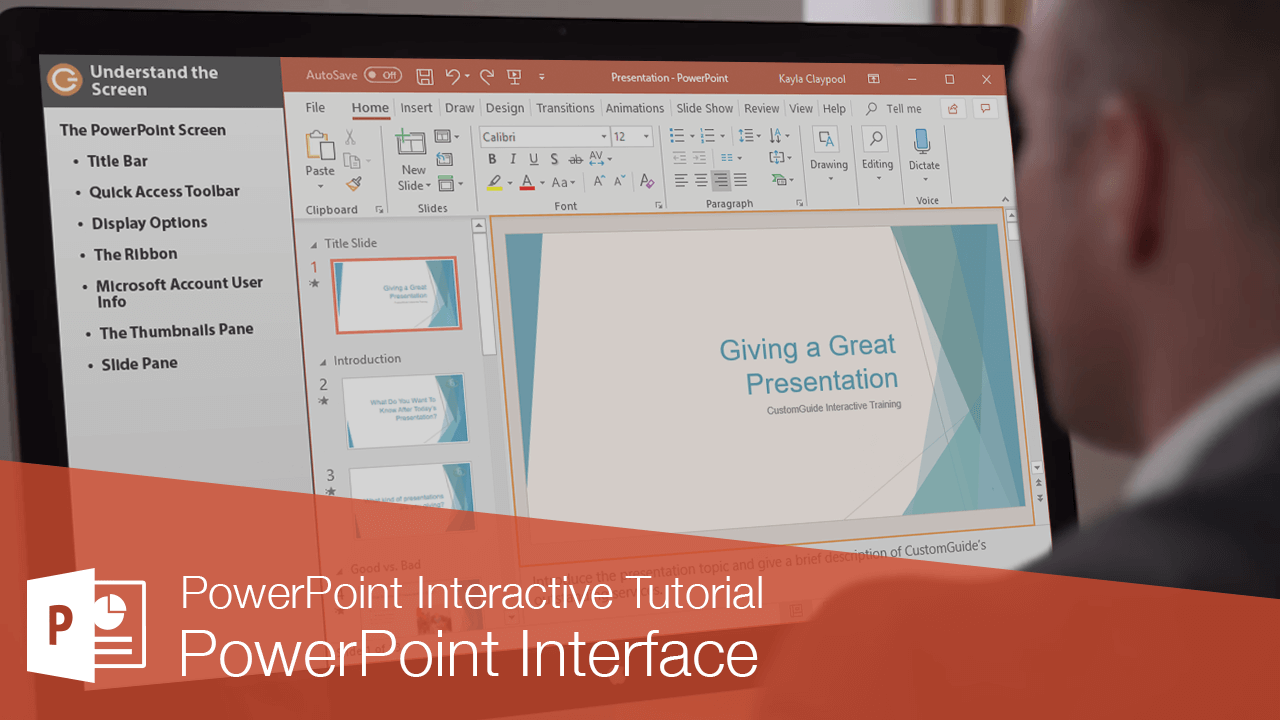
Understanding the PowerPoint Interface
Ribbon - contains all the tools and commands Slide panel - shows your slides on the left Main editing area - where you create content Notes section - for speaker notes at the bottom

Types of Slides You Can Create
{"left":"Title slides for introductions\nContent slides with bullet points\nImage slides with pictures","right":"Chart slides with graphs and data\nBlank slides for creative layouts\nComparison slides with two columns"}

Creating Your First Slide
Click in the title box Type 'My First Presentation' Click in the content box Add three bullet points about yourself
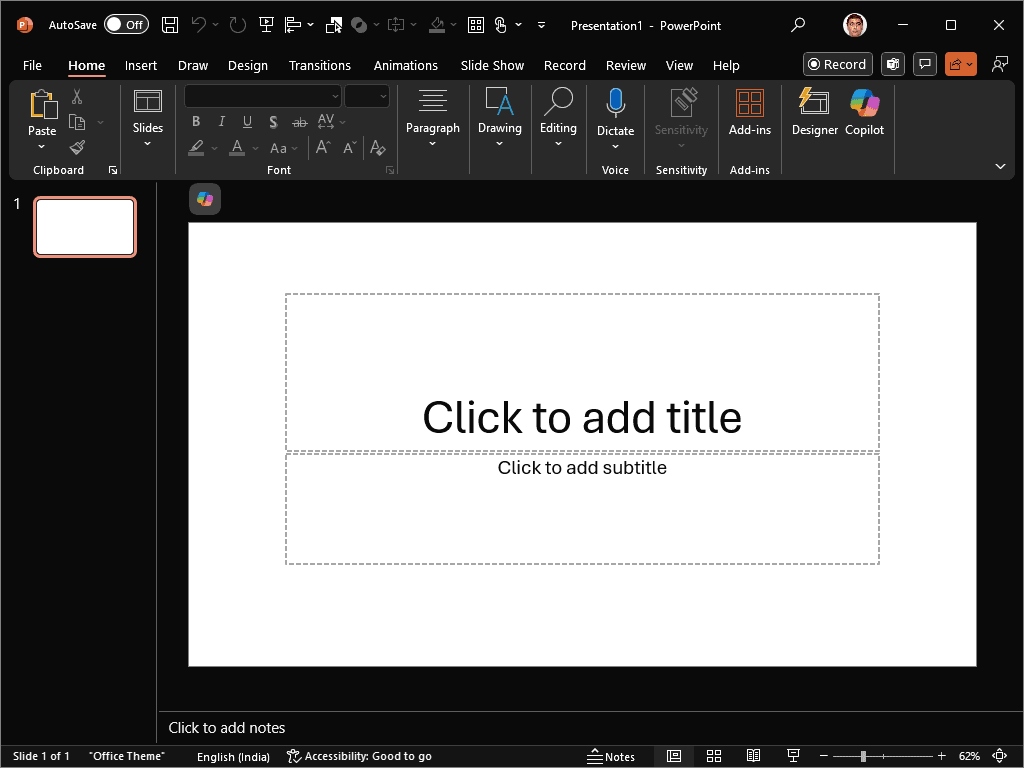
Adding New Slides
Click 'New Slide' button in the Home tab Choose a layout from the dropdown menu Title and Content is the most common layout You can change layouts later if needed

Quick Check: What Have We Learned?
What are the main parts of the PowerPoint interface? How do you add a new slide? What type of information goes in the title box?
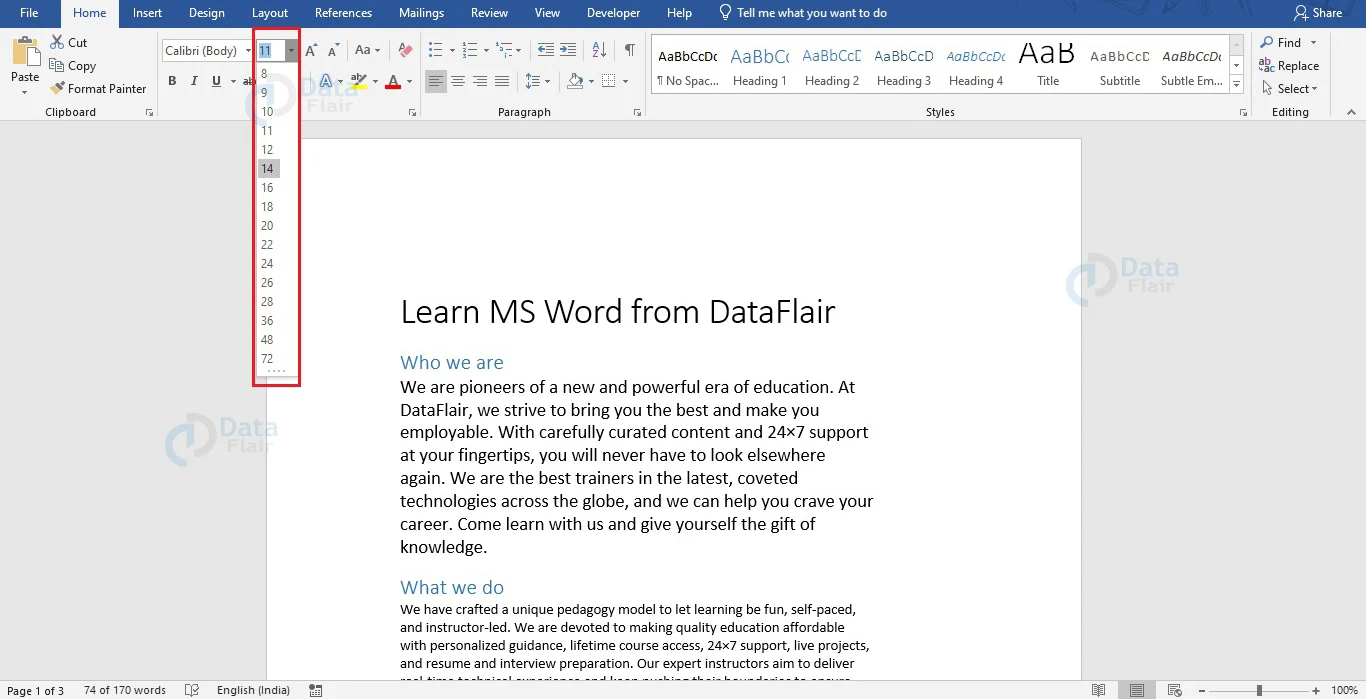
Formatting Text
Select text by clicking and dragging Use Bold, Italic, or Underline buttons Change font size with the size dropdown Pick different colors with the font color tool
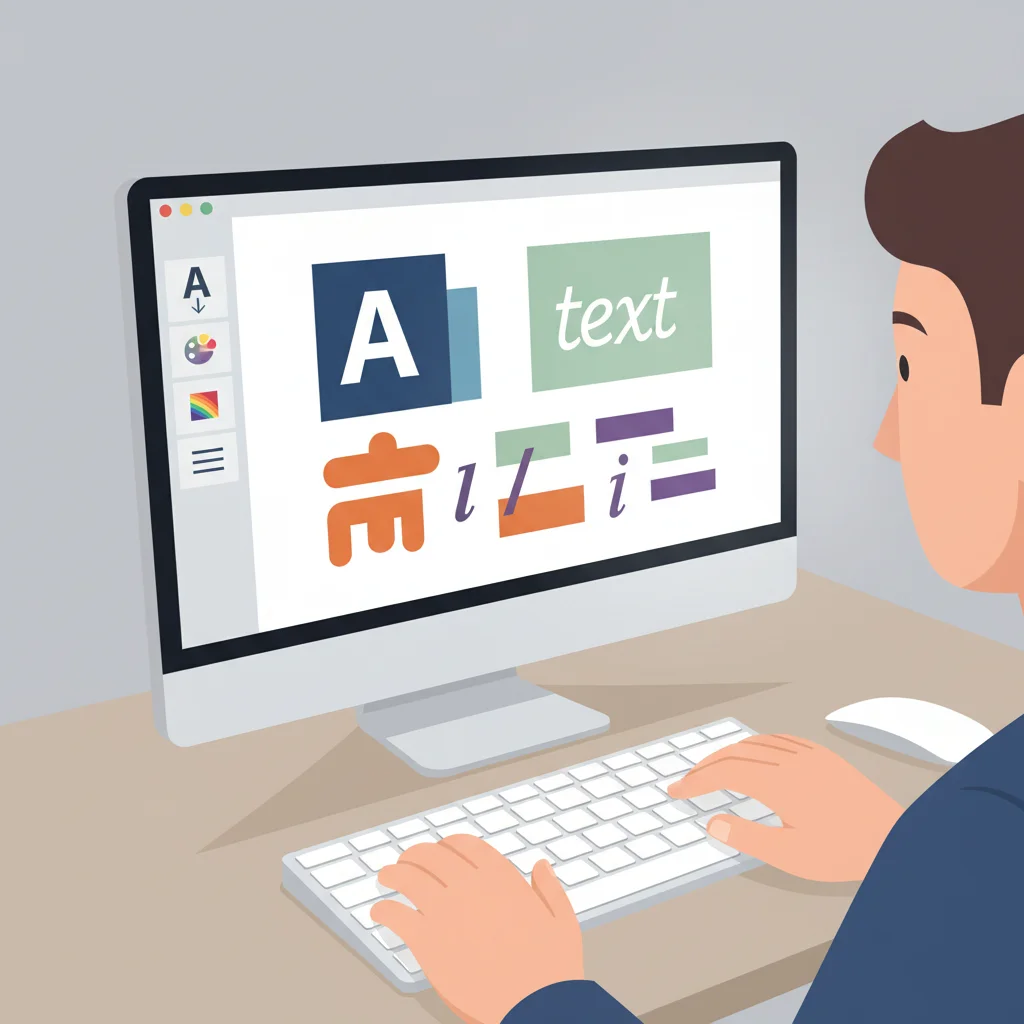
Practice: Format Your Text
Make your title bold and larger Choose a color for your title Make one bullet point italic Try different font sizes

Adding Images to Slides
Click Insert tab in the ribbon Choose 'Pictures' for photos from your computer Select 'Online Pictures' for internet images Resize images by dragging the corners

Saving and Presenting Your Work
Save regularly using Ctrl+S or File > Save Choose a location you'll remember Use Slideshow view to present (F5 key) Navigate slides with arrow keys or mouse clicks