
The most popular advice about classroom technology is to use more of it: add an app, move the worksheet online, give students another digital choice. That's the wrong starting point. A device earns class time when it helps students understand something, practice with useful feedback, or participate in a task they couldn't otherwise access.
Device access is the start, not the win. A useful technology integration classroom plan needs a purpose, a time cap, a student product, and teacher review. Without those, a busy screen can hide a quiet misunderstanding.
What Technology Integration Means Beyond Devices
The devices are open. Students are clicking through an activity about electrical circuits. Everyone looks occupied, but when you ask why the bulb lights, several students describe which button they pressed rather than how the circuit works.
That's the distinction between using technology and integrating technology into instruction. Integration means choosing a digital tool because it makes a concept clearer, guides practice, reveals student thinking, or opens an access route. Moving a worksheet onto a screen might be convenient, but convenience alone doesn't strengthen the task.
Start with the destination
Think of the device as the on-ramp, the objective as the destination, and the student product as evidence that you arrived. For the circuit activity, the destination isn't completing the simulation. It's explaining why a complete pathway allows the bulb to light.
Ask students to change the circuit, predict what will happen, and draw an explanation afterward. Now the tool has a defined instructional job.
The historical access picture helps explain why equipment alone isn't enough. UNESCO's technology-in-education report describes how, in 2018, 65% of 15-year-olds across OECD countries attended schools whose principals believed teachers had the technical and pedagogical skills to integrate devices, and 54% attended schools with an effective online learning-support platform; yet only about 10% of 15-year-olds across more than 50 participating education systems used devices for more than an hour weekly in mathematics and science lessons, on average, while approximately 50% of lower-secondary schools worldwide had internet for pedagogical purposes in 2022.
Planning filter: Name what the tool contributes, when students will stop, what they'll produce, and how you'll check understanding.
For a broader perspective on instructional uses, MEDIAL's guide to edtech for university faculty offers a useful companion resource. The setting differs, but the question transfers: what does the technology let the learner do better?
When a Digital Activity Earns Class Time
When technology earns the minutes
These are suggested planning caps, not research-established doses. Adjust them for the task and students, especially when technology provides an essential accommodation.
| Purpose | Time cap | Student product | Stay offline when |
|---|---|---|---|
| Model a hard or invisible idea | 8-12 minutes | Sketch, labeled diagram, or spoken explanation | A physical model or demo already shows it clearly |
| Guided practice with feedback | 10-15 minutes | One corrected error pattern, not a full score dump | Students still need teacher modeling before independent tries |
| Formative check | 5-8 minutes | 3-5 items tied to one objective | A show of hands or exit slip is faster and enough |
| Access route for language, print, or disability | As long as peers get for the same task | Same product as the class, possibly dictated or captioned | Only when an equivalent accessible route exists; otherwise retain the digital accommodation |
| Shared thinking | 10 minutes | One claim each student can defend aloud | The doc becomes one typist and silent partners |
| Student creation | 15-25 minutes in one sitting | Draft, audio, or slide the student can revise | Production time crowds out the thinking the rubric grades |
A tool earns time if it does a job that paper, discussion, or manipulatives can't do as well. Begin with a short screen window, often ten to fifteen minutes in a trial lesson, followed by something you can inspect without opening every device.
Read the row as a teaching decision
For a science circuit simulation, you might allow ten minutes to test arrangements, then collect a labeled sketch. Choose the simulation because students can change conditions quickly, not because animated bulbs look appealing. If your physical circuit equipment makes the idea equally clear, use that instead.
In math practice, stop the set when a target error appears. Have the student correct that item and explain the correction on paper. Continuing through more questions won't help if the student keeps rehearsing the same misconception.
For a multilingual learner, a read-aloud with captions can provide entry to the text before the student joins the class discussion. The access support shouldn't become a separate, easier assignment. Check that the learner can use the controls and understand the prompt.
A shared slide earns its place when students compare ideas and each person can explain the group's claim. If one student types while everyone else watches, switch to individual notes before discussion.
Name the objective, the minutes, and the product before the app opens.
Skip the digital version when login time threatens to exceed task time, or when a shared cart would leave students waiting. Choose paper for fluent handwriting practice and physical materials for a procedure students need to perform with their hands. If students can't explain the result without staring at the screen, pause and teach the idea again.
Frameworks That Keep Tools in Their Place
SAMR, TPACK, and Triple E are maps, not scorecards. They help you examine a lesson from different angles. None requires you to make a straightforward task more elaborate.
The SAMR hierarchy names how much a tool changes the task.
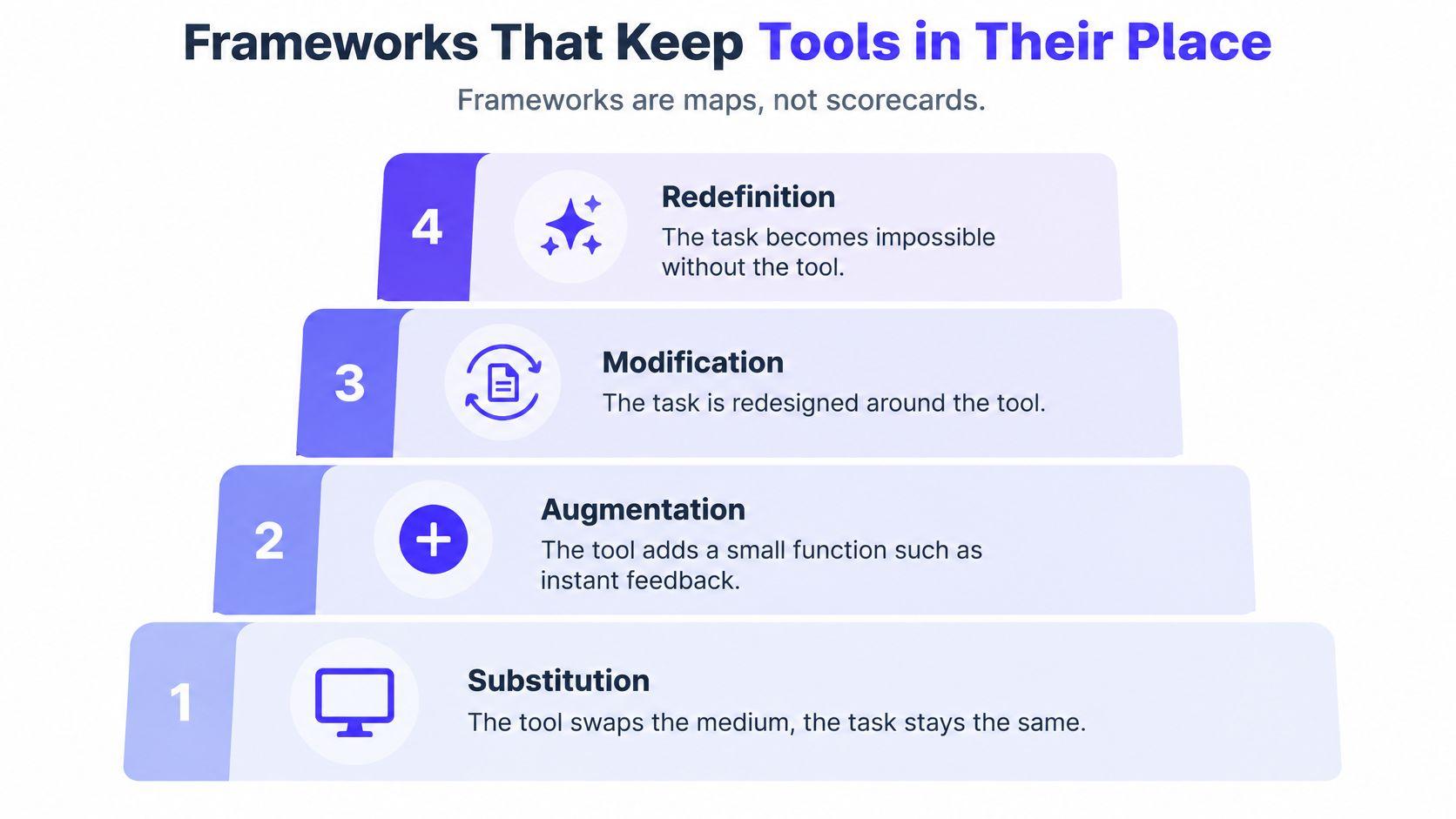
Follow a reading task through the frameworks
In SAMR, Substitution swaps the medium: students highlight a PDF instead of a printed passage. Augmentation adds a function, such as a vocabulary nudge. Modification redesigns the task, perhaps through recorded oral summaries that partners respond to asynchronously.
Redefinition describes a task that wasn't practical before the tool, such as sustained multimedia exchanges with a distant partner class. That isn't the required destination for every Tuesday lesson. A simple digital text that works with captions or read-aloud may be exactly the right choice for access.
TPACK asks whether you can bring together content knowledge, teaching knowledge, and knowledge of the technology. In that reading lesson, you need to understand the passage, know how to teach summarizing, and anticipate how students will use the recording controls. A strong app can't rescue an unclear prompt.
Triple E, developed by Liz Kolb, asks whether technology engages students in the learning goal, enhances their thinking, and extends learning beyond the immediate classroom setting. Clicking more isn't the same as thinking more. A partner response that prompts revision offers better evidence than a recording uploaded and forgotten.
Choose the question you need
Which framework answers which question
| Framework | Question it answers | Use it when | Do not use it to |
|---|---|---|---|
| SAMR | What role does the tool play in the task? | Distinguishing a swap, added function, redesigned task, or previously impractical task; accessible substitution can be valid | Force every Tuesday lesson up to Redefinition |
| TPACK | Do I have the content, pedagogy, and knowledge of how this tool behaves with this age group? | Checking readiness before pairing an app with a task | Treat tool skill as enough on its own |
| Triple E | Does it engage the learning goal, enhance thinking, and extend learning beyond the period? | Judging thinking in PDF highlighting, vocabulary support, or partner responses to an oral summary | Replace the time cap and visible student product |
For a visual explanation of SAMR, use this overview.
When AI enters the task, the guide to AI in schools provides additional planning context. Keep asking whose thinking the finished work will reveal.
What the Evidence Says About Dose and Support
More digital time does not automatically mean more learning. An OECD analysis of digital resources for learning found an inverted-U relationship between ICT use and computer-based reading performance: students with below-average or above-average use tended to perform worse than those near the middle. The report also found that, on average, 26% of students used digital resources in more than half their mathematics lessons, compared with 29% in the test language and 33% in science.
The curve describes an association, not a screen-time allowance.
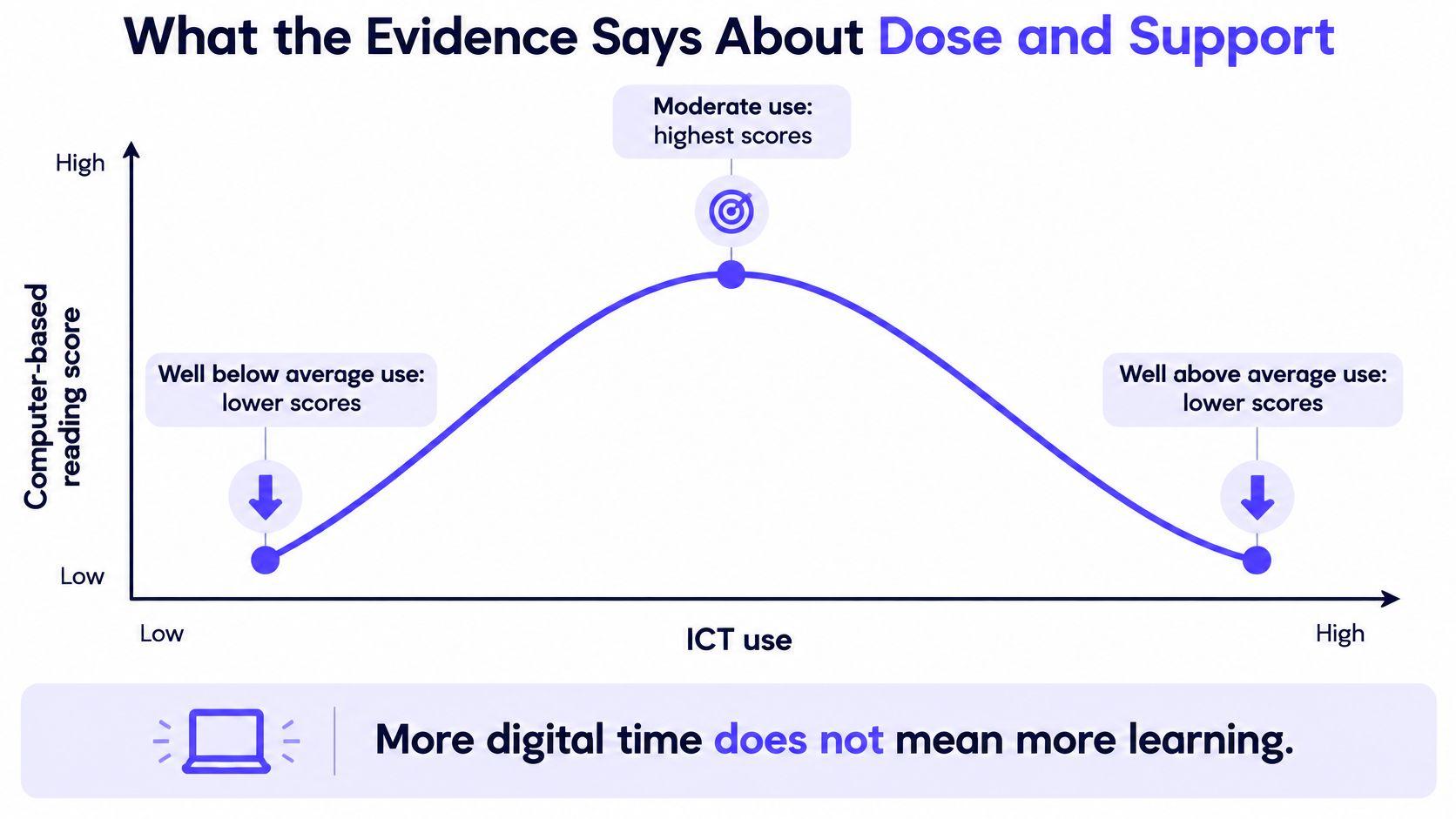
Don't turn an association into a timer
These findings do not establish an ideal number of minutes for a class, or show that changing screen time alone causes reading performance to change. Students, tasks, and teaching conditions differ.
Instead, give each digital activity a purpose, a time cap, and a visible student product. A student might investigate a relationship digitally, then explain it in writing or discussion. The teacher reviews that explanation to see what the student understands. For another student, assistive technology may be needed throughout the task.
AI adoption calls for the same care. Across OECD education systems, AI use was a minority work practice among teachers in 2024. That does not make AI a requirement for student activities.
Separate adoption from support
The OECD report on preparing teachers for digital education reports that, across OECD countries in PISA 2022, 77% of students said teachers integrated digital resources, and 88% attended schools whose principals believed teachers had the necessary skills, up from 64.5% in 2018. Yet 41% attended schools where principals reported insufficient teacher preparation time, another 41% lacked enough qualified technical-assistance staff, 67% had subject-specific pedagogical guidelines, and 58% had scheduled teacher collaboration time.
These figures describe different conditions. Knowing how to operate a tool does not give a teacher time to review its questions, adapt its reading demands, or prepare an accessible alternative.
School leaders can protect practical supports:
- A reviewed activity bank. Store the objective, materials, likely misconceptions, and assessment alongside each digital resource.
- A short subject guide. Clarify where technology adds instructional value and where physical practice or discussion should take priority.
- Scheduled planning time. Put collaborative review on the calendar so teachers can refine activities together.
A reusable lesson sequence gives teachers a starting point for that review. Each use can be adjusted to keep the activity focused on student learning, rather than adding screen time for its own sake.
Plan the Lesson by Grade and Subject
Begin with what students must demonstrate, not the platform you've been meaning to try. A clear plan also tells a colleague what to do if the network fails halfway through.
Use this visual as a planning prompt, then write the classroom details explicitly.
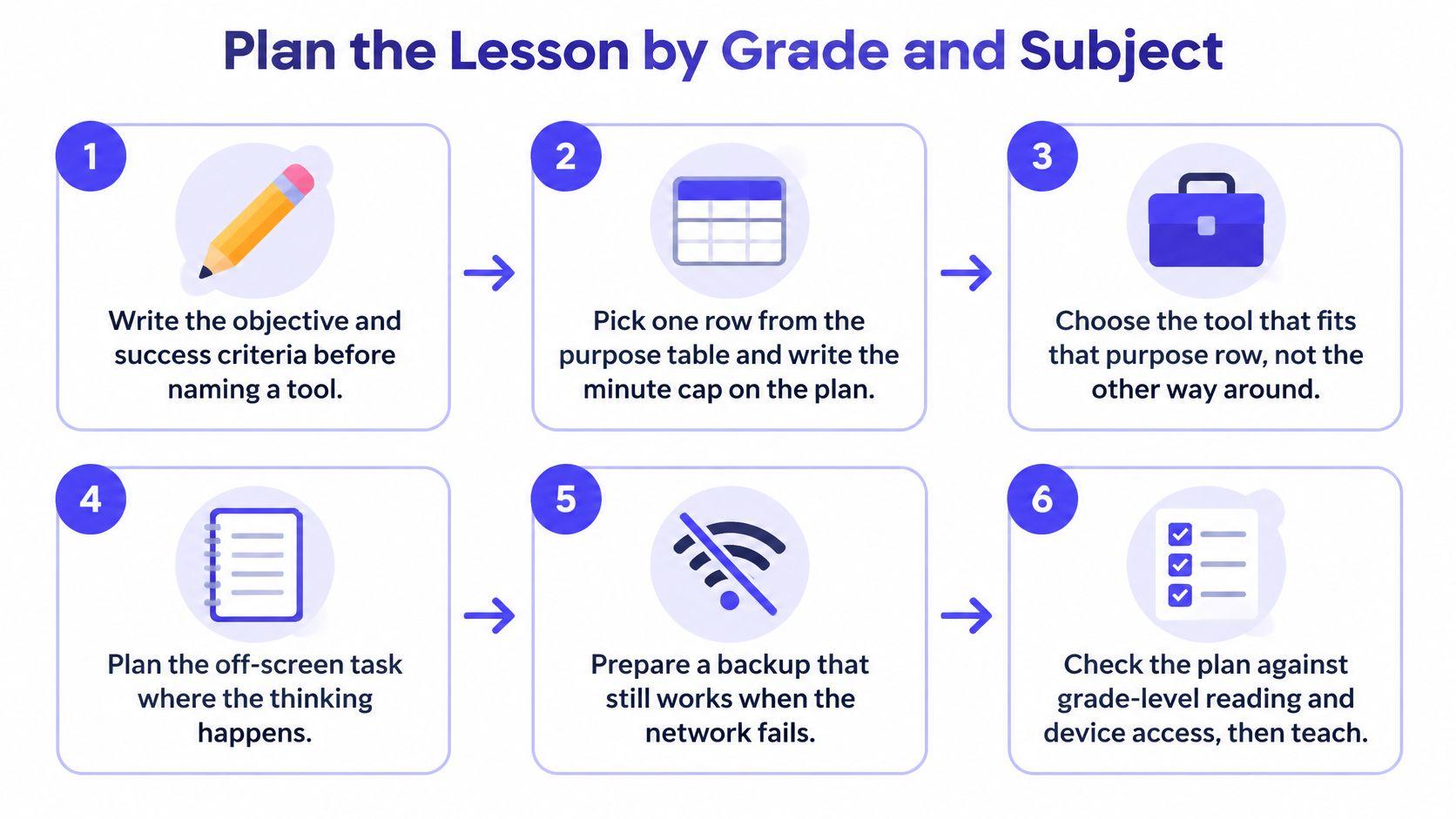
Write the routine once
- Set the objective and success criteria. Replace “complete the activity” with something observable, such as explaining a relationship using accurate labels.
- Choose a purpose and cap. Select the instructional job before selecting the tool. Write the stopping point into the plan.
- Specify the product and fallback. Prepare a paper or accessible equivalent that preserves the learning demand.
- Script the transitions. State how students enter the activity, how they stop, and where closed devices belong.
- Add an independent check. Collect evidence that doesn't rely on the platform dashboard.
- Mark what to reuse. Save the prompt, resource, and assessment together, with a note about what needs changing.
The routine stays stable, but students' reading, independence, and device experience affect how you teach it. Don't assume age alone tells you whether a class can manage accounts or collaborate on a shared document.
Integration patterns by grade band
| Grade band | Device pattern | Strong use | Weak use | Check |
|---|---|---|---|---|
| K-2 | Teacher screen or 1 device per pair | Watch a model, then build or draw | Independent browsing or long logins | Oral retell or labeled drawing |
| Grades 3-5 | Short shared-device rotation | Guided practice or captioned reading | Whole period on one app | Paper product or one offline written check |
| Grades 6-8 | Shared or 1:1 with a timer | Simulation plus explanation | Unguided slides as the product | Diagram plus two short answers |
| Grades 9-12 | 1:1 or bring-your-own with rules | Creation tied to a thinking rubric | Polished video that hides thin content | Rubric row for reasoning, not effects |
Apply it across subjects
Grade 7 science, photosynthesis. Say the objective is to explain the inputs and outputs of photosynthesis. Students use a simulation in pairs for eight minutes, then close devices before discussing what changed.
Their product is a labeled paper diagram, followed by a two-item exit slip. Prepare a printed sequence of simulation states as the fallback, and retain whichever prompt best revealed confusion about where the inputs came from.
A planning aid such as Kuraplan can draft this sequence from a topic and cohort, including a worksheet, while you retain control of the content. We've designed it to be simple enough for teachers who aren't confident with technology. Teacher Ava describes that balance: “I've loved how easy it is create to lesson/unit plans but still being able to have control over the content within the classroom.”
Grade 4 math, place value. Suppose students are confusing the value of a digit with the digit itself. Choose guided practice with a ten-minute cap, stopping the set when that error appears.
Students correct the item on paper and explain the digit's value. Keep the same three problems on a card as the fallback, put devices in the bin before an offline exit problem, and save the example that made the misunderstanding easiest to spot.
Grade 10 English, defending a claim. Ask students to defend an interpretation of a paragraph using relevant evidence. Offer captions or read-aloud for the same working time peers receive, then ask each student to state a claim with the screen closed.
Prepare a printed paragraph with the same prompt, while retaining any essential assistive support. Use a rubric row for the connection between evidence and interpretation, and keep an annotated model for the next lesson.
Grade the diagram, exit response, or reasoning criterion. Treat an app badge as a cue to inspect the student's work, not as a substitute for it.
Equity Access and Classroom Management
A technology plan has to work in the room you teach, not the room in the brochure. The Microsoft AI in Education Report describes a 2025 study of Pakistani K-12 educators in which more than two-thirds were willing to adopt AI with support and 73% reported reduced workload, but only 42% believed all students had equal access and 73% feared students without devices would be left behind; it also reports that 45% of educators globally in a Microsoft survey had received no AI training.
The same report highlights UNESCO's concerns about inequality, privacy, safety, ethics, and governance. Those concerns belong in lesson design, not just in an acceptable-use document.
Support needs to be available while students work, not only when they get stuck.
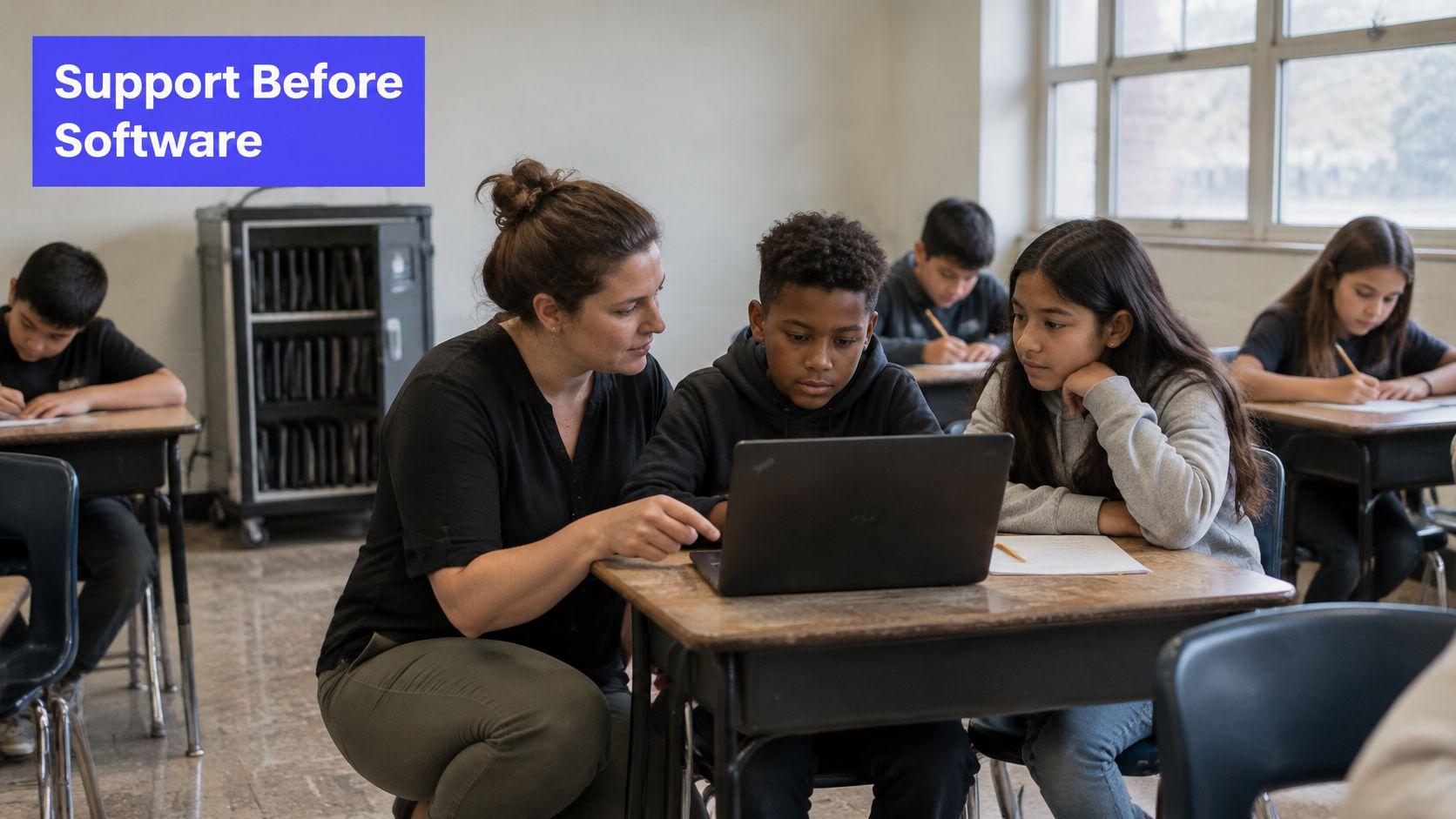
Offer equivalent participation paths
Plan different routes to the same learning demand:
- Device route. Students use the approved resource within the planned work period.
- Paper route. Students complete an equivalent task when the cart is unavailable or a login fails.
- Supported route. Students use read-aloud, captions, dictation, or another needed support to produce evidence of the same understanding.
Equivalent doesn't mean identical. A dictated explanation can show the same science reasoning as a handwritten one, provided handwriting isn't the skill being assessed.
Test the actual support before the lesson. Check whether captions are accurate, whether a screen reader can reach the instructions, and whether translated directions preserve the task's meaning. A printable alternative isn't accessible merely because it's printable.
Teach the device routine explicitly
Use a predictable rhythm: screens positioned so you can supervise, a visible timer, and devices closed before discussion. Model the stopping routine before students need it, including what to do when a page won't load.
The classroom management strategies guide can help you connect these procedures to your wider expectations. Keep technical troubleshooting from becoming a public test of a student's confidence.
Privacy boundary: Don't paste student names or identifiable student work into a public tool.
Use school-approved systems and follow your school's data rules. Don't tie a grade to a home device, reliable home internet, or an external account a family hasn't approved. When an accommodation is essential, preserve it rather than enforcing a uniform screen limit.
Judge One Lesson Then Plan the Next
More screen time is not proof of better learning. Judge a lesson by the evidence students produce and the time it takes to run. On Friday, record a few measures while the details are still fresh.
Run a short Friday audit
- Learning time. Record device minutes alongside time spent explaining, discussing, or justifying.
- Success rate. Calculate the percentage meeting the success criteria on an independent check, not the app badge.
- Participation. Note who used paper or assistive routes and still showed the target learning.
- Teacher repair time. Track minutes spent fixing logins, checking questionable work, or rebuilding resources.
The formative assessment examples guide offers ways to make an independent check manageable. Choose evidence you can interpret quickly enough to shape the next lesson.
Keep the digital activity when students show stronger understanding and the repair time stays below the preparation time it saves. Without a fair comparison, treat the lesson as a trial. A high app score alongside a weak exit response is a signal to shorten, change, or remove the tool.
Count time added as well as time saved
AI tools can shorten preparation, but checking generated materials for accuracy, developmental fit, cultural responsiveness, and curriculum alignment can offset that time. Review materials before students use them.
Give student thinking a visible place in the lesson. Collect a planning note, listen to an explanation, and ask students to revise a specific part of their work. State what AI assistance is allowed and what thinking students must demonstrate themselves.
When a sequence works, reuse its prompts, transitions, and assessment instead of searching for a new app. Change the part that failed, not everything at once. Let the student product and your audit guide the next decision, rather than the tool's novelty.
Kuraplan creates standards-aligned lesson plans in minutes, including differentiated instruction and assessment rubrics. Its AI chat offers curriculum expertise and classroom management tips. Use Kuraplan to draft a lesson around one objective, then review the materials, teach it, and keep the parts that improve students' explanations.