TechnologyFreePrintable

Design Software Essentials

A free technology worksheet ready for your classroom. Open in Kuraplan to grab the print-ready PDF, customize it for your students, or generate a fresh version in seconds.
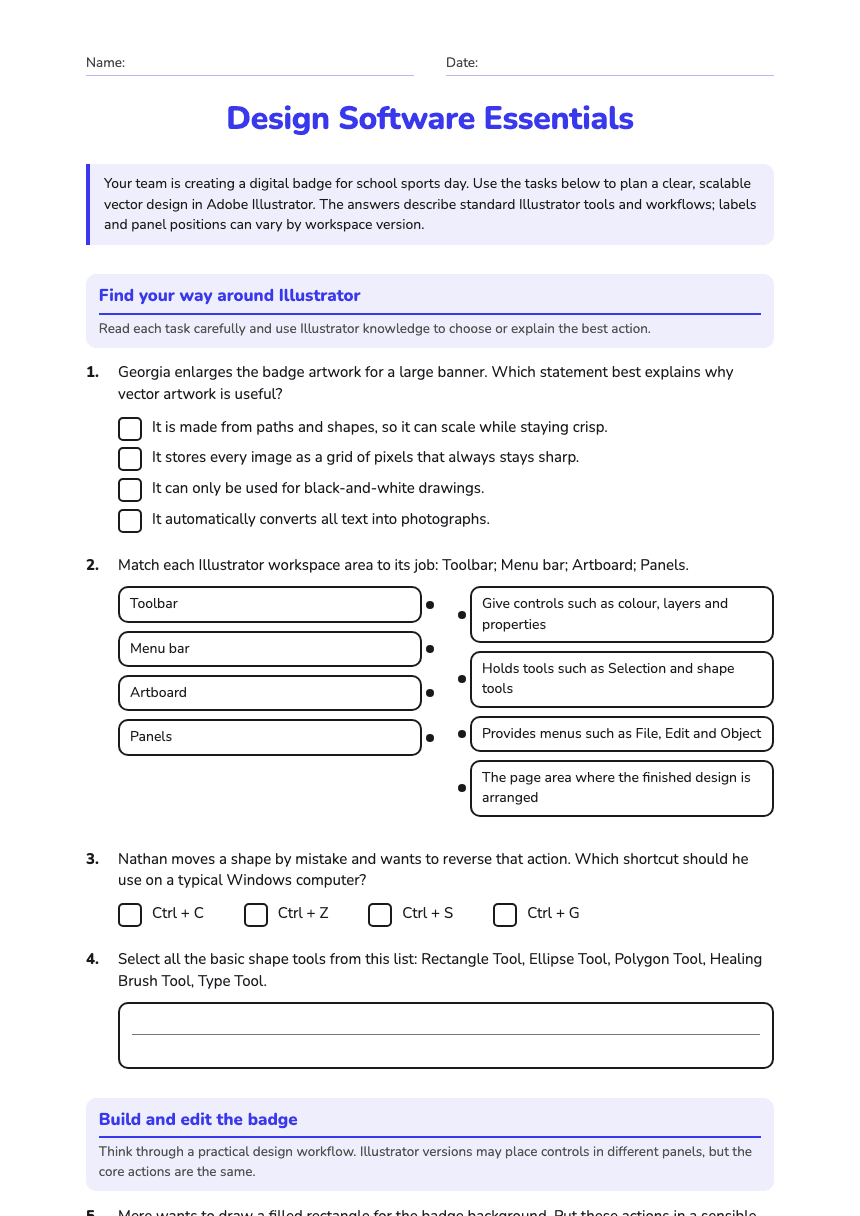
Design Software Essentials worksheet preview
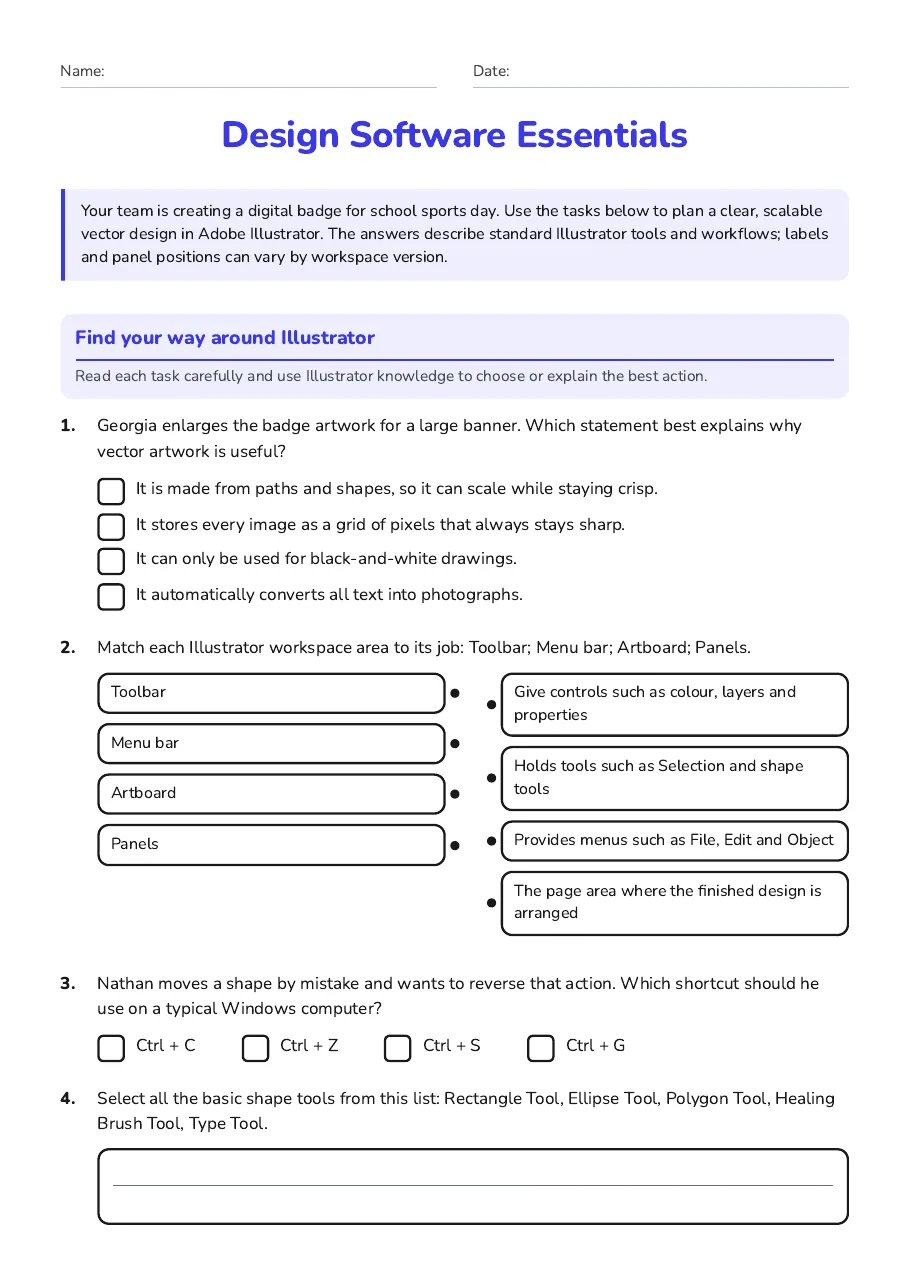
Name:Date:

Design Software Essentials

Your team is creating a digital badge for school sports day. Use the tasks below to plan a clear, scalable vector design in Adobe Illustrator. The answers describe standard Illustrator tools and workflows; labels and panel positions can vary by workspace version.

Find your way around Illustrator

Read each task carefully and use Illustrator knowledge to choose or explain the best action.

1.Georgia enlarges the badge artwork for a large banner. Which statement best explains why vector artwork is useful?
  • It is made from paths and shapes, so it can scale while staying crisp.
  • It stores every image as a grid of pixels that always stays sharp.
  • It can only be used for black-and-white drawings.
  • It automatically converts all text into photographs.
2.Match each Illustrator workspace area to its job: Toolbar; Menu bar; Artboard; Panels.
  • Toolbar
  • Menu bar
  • Artboard
  • Panels
  • Give controls such as colour, layers and properties
  • Holds tools such as Selection and shape tools
  • Provides menus such as File, Edit and Object
  • The page area where the finished design is arranged
3.Nathan moves a shape by mistake and wants to reverse that action. Which shortcut should he use on a typical Windows computer?
  • Ctrl + C
  • Ctrl + Z
  • Ctrl + S
  • Ctrl + G
4.Select all the basic shape tools from this list: Rectangle Tool, Ellipse Tool, Polygon Tool, Healing Brush Tool, Type Tool.

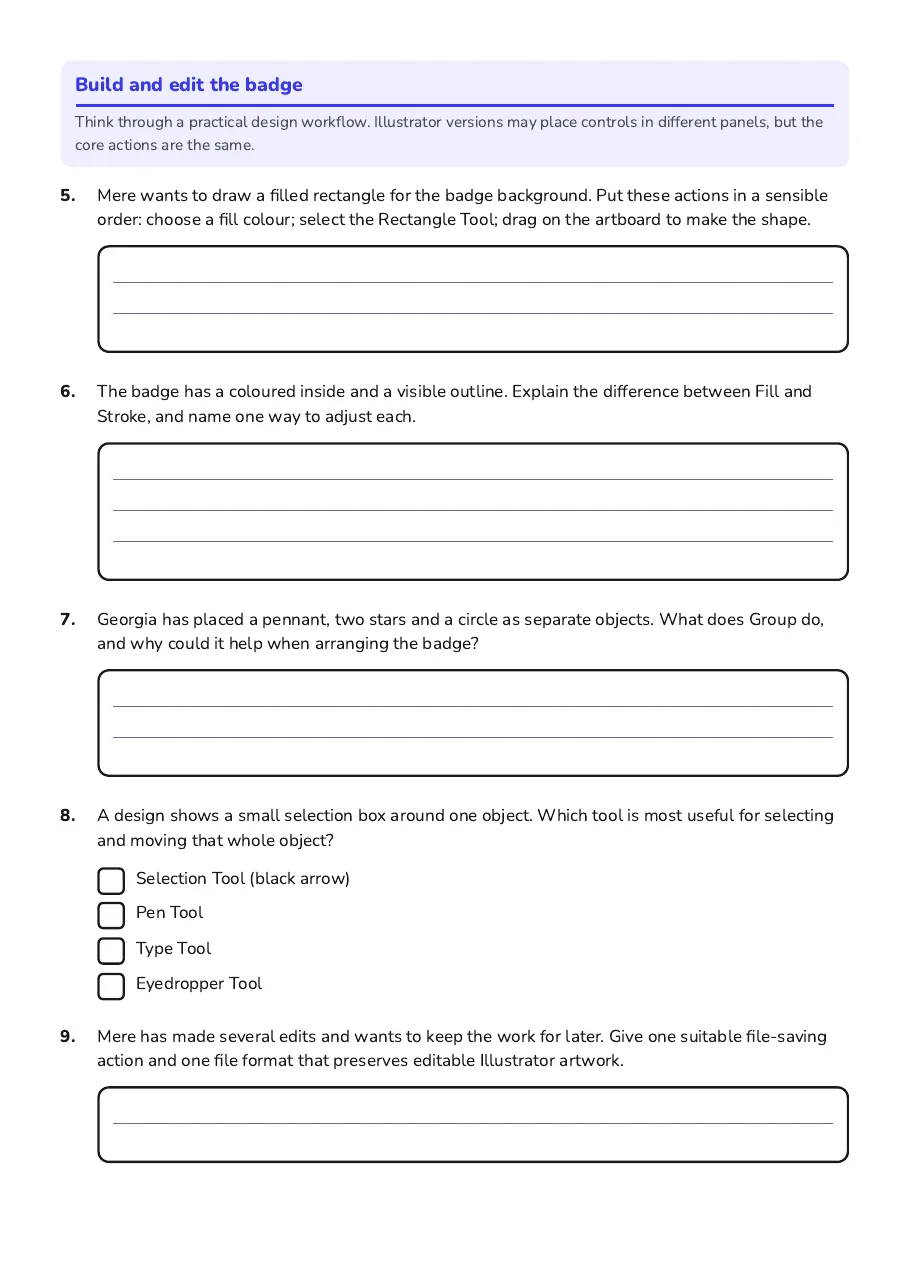
Build and edit the badge

Think through a practical design workflow. Illustrator versions may place controls in different panels, but the core actions are the same.

5.Mere wants to draw a filled rectangle for the badge background. Put these actions in a sensible order: choose a fill colour; select the Rectangle Tool; drag on the artboard to make the shape.
6.The badge has a coloured inside and a visible outline. Explain the difference between Fill and Stroke, and name one way to adjust each.
7.Georgia has placed a pennant, two stars and a circle as separate objects. What does Group do, and why could it help when arranging the badge?
8.A design shows a small selection box around one object. Which tool is most useful for selecting and moving that whole object?
  • Selection Tool (black arrow)
  • Pen Tool
  • Type Tool
  • Eyedropper Tool
9.Mere has made several edits and wants to keep the work for later. Give one suitable file-saving action and one file format that preserves editable Illustrator artwork.
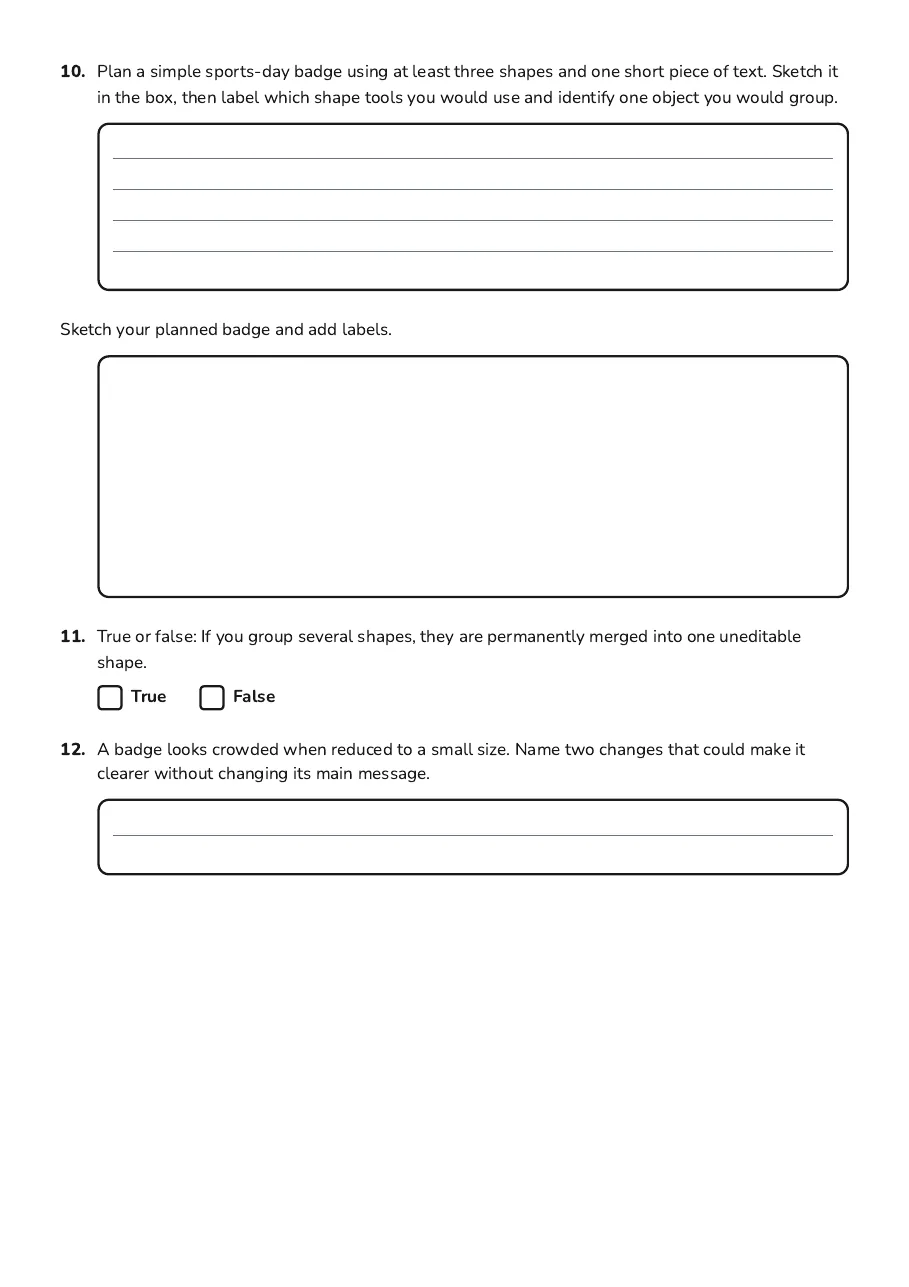
10.Plan a simple sports-day badge using at least three shapes and one short piece of text. Sketch it in the box, then label which shape tools you would use and identify one object you would group.
Sketch your planned badge and add labels.
11.True or false: If you group several shapes, they are permanently merged into one uneditable shape.
TrueFalse
12.A badge looks crowded when reduced to a small size. Name two changes that could make it clearer without changing its main message.

3 printable pages

  • Design Software Essentials, page 1 of 3: Find your way around Illustrator

    Page 1

  • Design Software Essentials, page 2 of 3: Build and edit the badge

    Page 2

  • Design Software Essentials, page 3 of 3: 10. Plan a simple sports-day badge using at least three shapes and one short piece of…

    Page 3

About This Worksheet

Free in Kuraplan

Sign up free, grab the PDF, and customize it for your class.

Print-Ready

Formatted for standard paper. Clean layout, easy to read.

AI-Generated

Created with Kuraplan's AI, designed for real classroom use.

For Teachers & Parents

Use in classrooms, for homework, tutoring, or homeschool.

Need a custom version of this worksheet?

Kuraplan's AI generates custom worksheets in seconds — differentiated for every learner, aligned to your curriculum.

Generate Custom Worksheets — Free
No credit card Curriculum-aligned Under 60 seconds