Microsoft Word Scavenger Hunt Guidelines
Grade 7 Technology Class Partner Project Instructions Duration: 30 minutes
Project Introduction
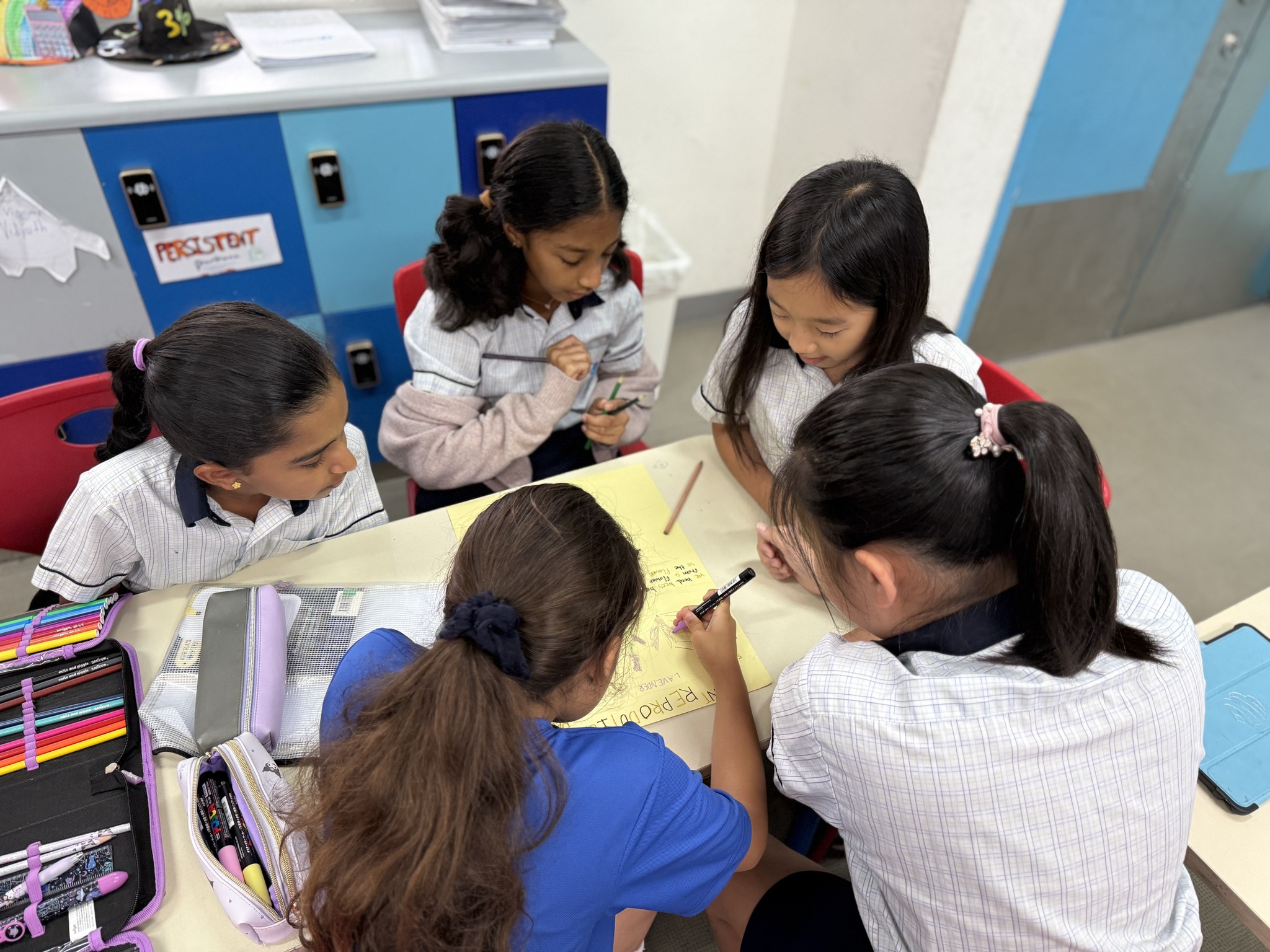
Work with a partner to explore Microsoft Word features Complete challenges by finding specific tools and functions Document your discoveries as you go Build essential digital literacy skills for school and future careers
Learning Objectives
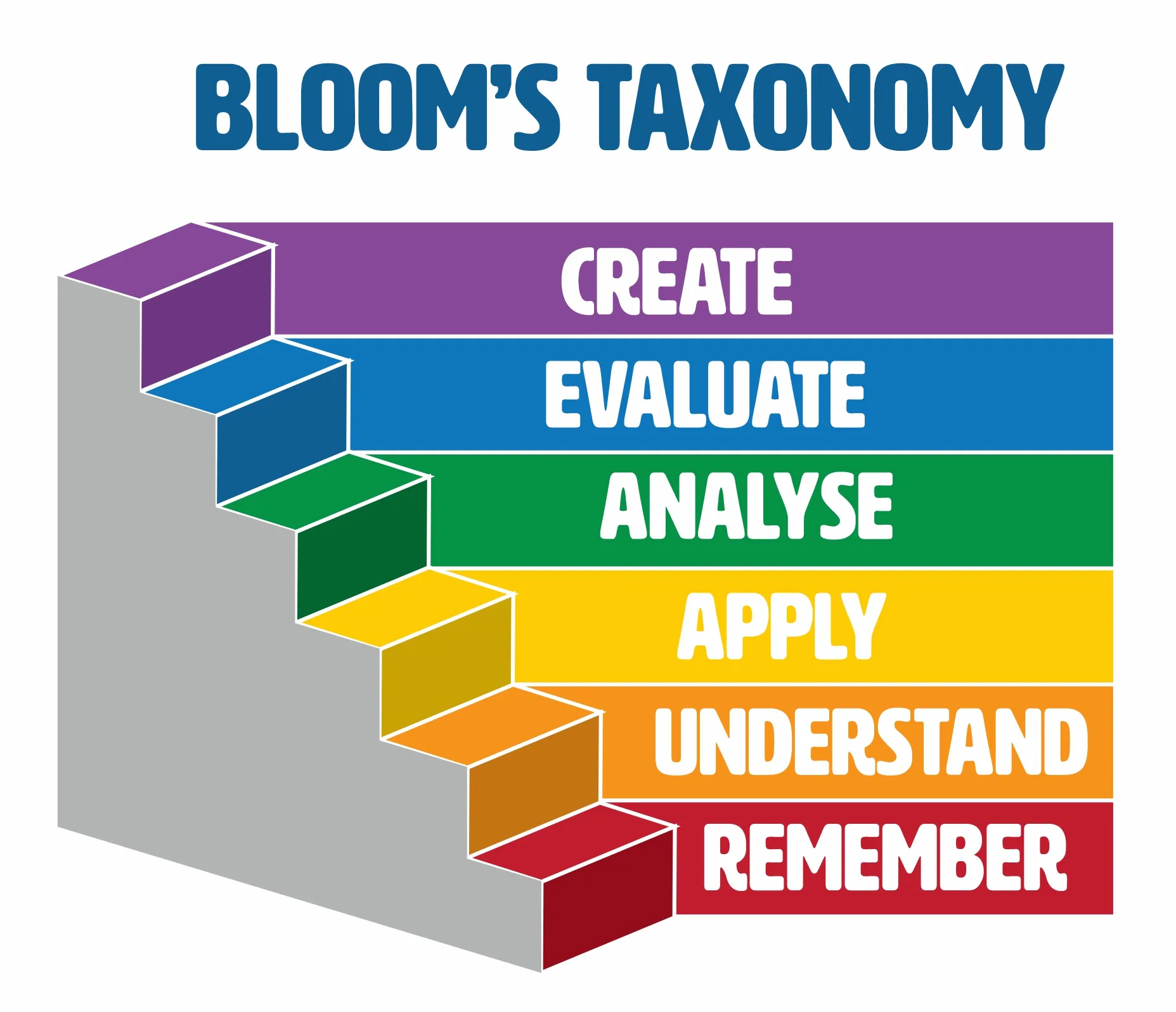
Navigate Microsoft Word's ribbon and menus confidently Use formatting tools to create professional-looking documents Apply collaboration features for group work Develop problem-solving skills through exploration Practice effective communication with your partner
Scavenger Hunt Rules
Stay with your assigned partner at all times Raise your hand if you need help - no calling out Complete challenges in order from 1-10 Take turns being the 'driver' and 'navigator' Save your work every 5 minutes Celebrate discoveries quietly to respect other teams
Teamwork Expectations
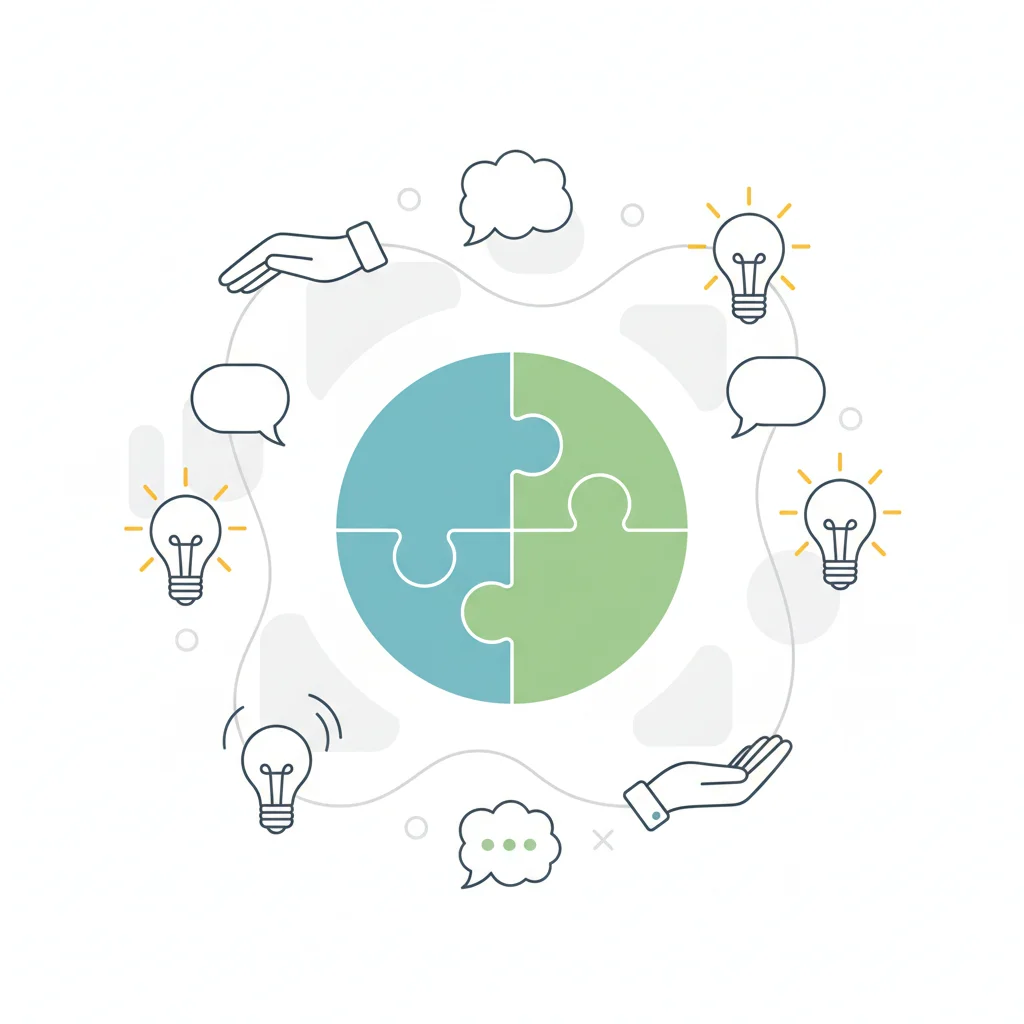
{"left":"Both partners must participate equally\nOne person types while the other guides and suggests\nSwitch roles every 2-3 challenges","right":"Help each other learn - explain what you discover\nBe patient and encouraging with your partner\nAsk 'What do you think?' before making decisions"}
Microsoft Word Features to Find
How to Document Your Findings
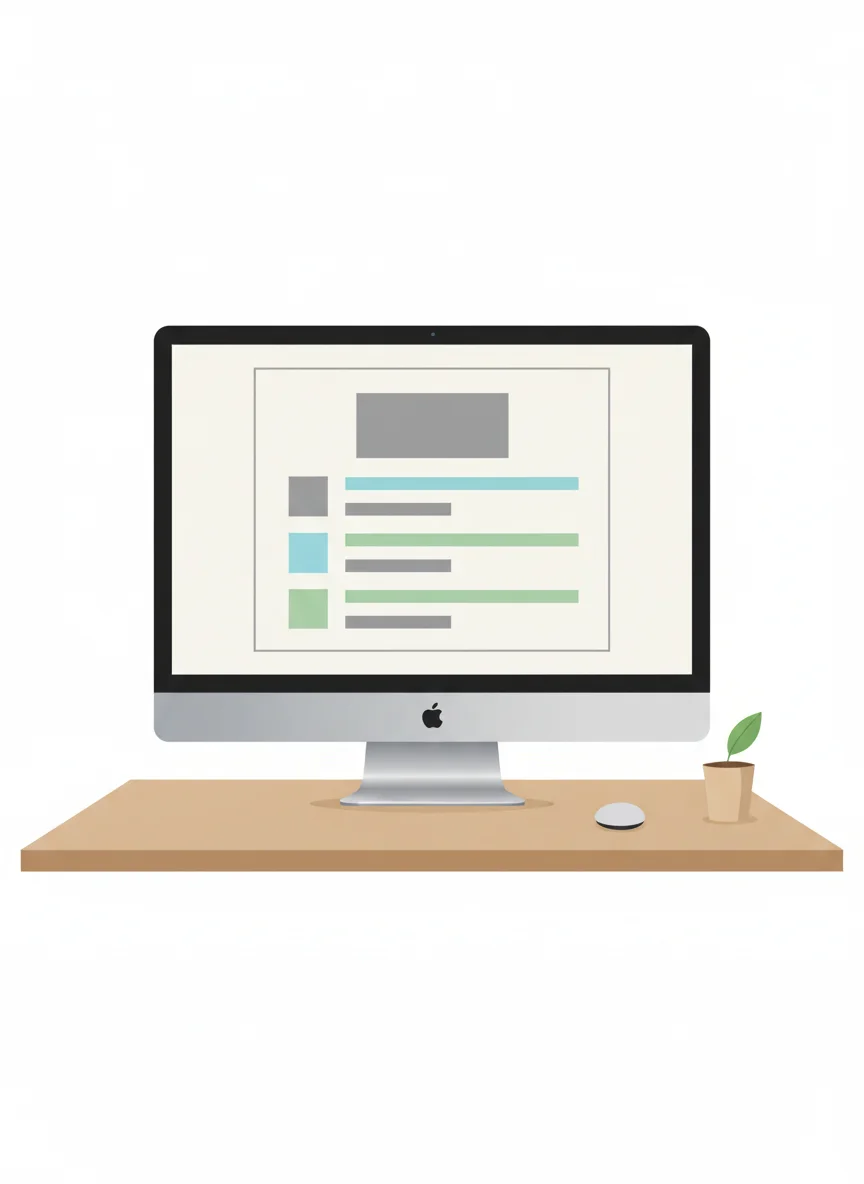
Create a new Word document titled 'Scavenger Hunt Discoveries' For each challenge, write the number and what you found Take a screenshot of the tool or feature you discovered Write one sentence explaining what the feature does Include both partners' names on the document

Success Criteria
Complete at least 8 out of 10 challenges Document findings clearly with screenshots Both partners contribute equally to the work Demonstrate 3 new Word features to the class Submit a well-organized discovery document Show positive teamwork throughout the activity
Support for All Learners
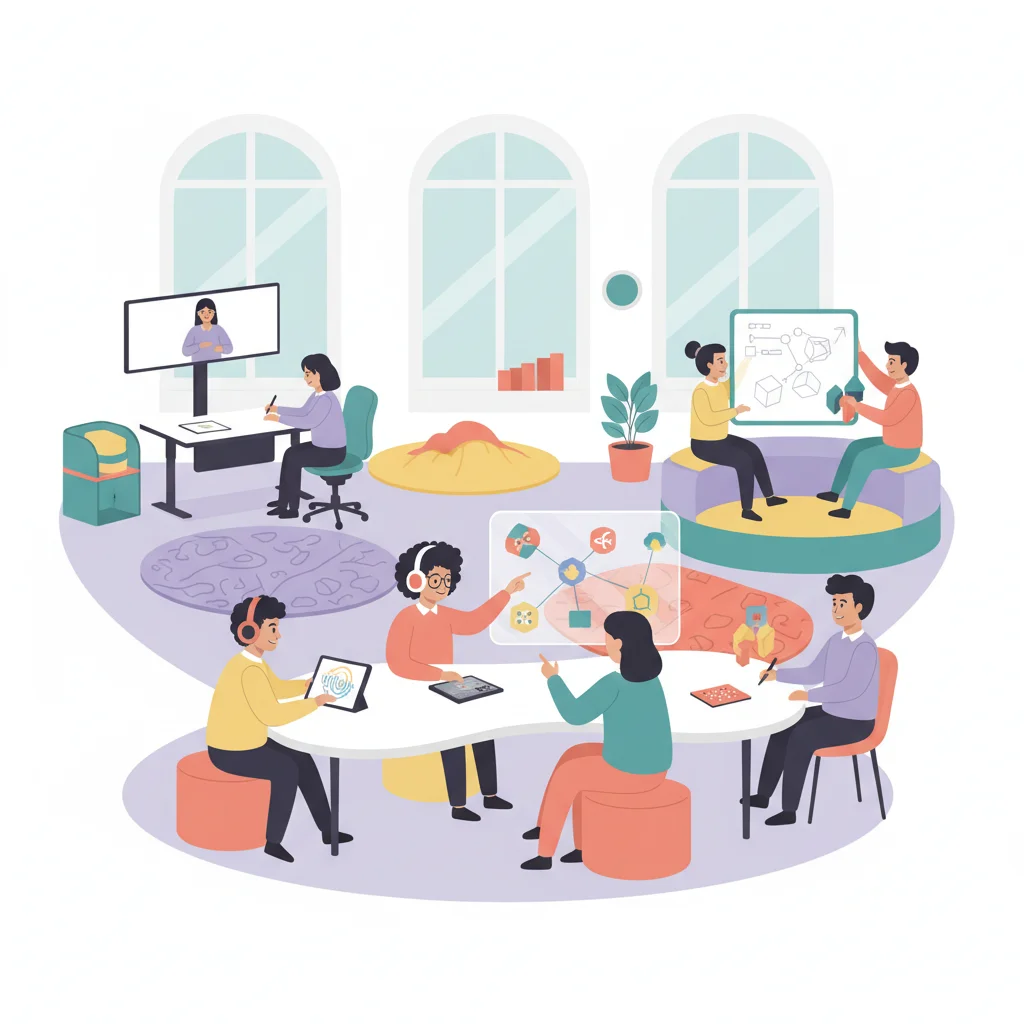
Visual learners: Use screenshots and color-coding in your documentation Struggling readers: Use the Read Aloud feature in Word to hear instructions Advanced learners: Explore additional features beyond the required list Need extra time: Focus on quality over quantity - complete fewer challenges thoroughly Dyslexia-friendly tips: Use larger fonts, change background colors, and take frequent breaks
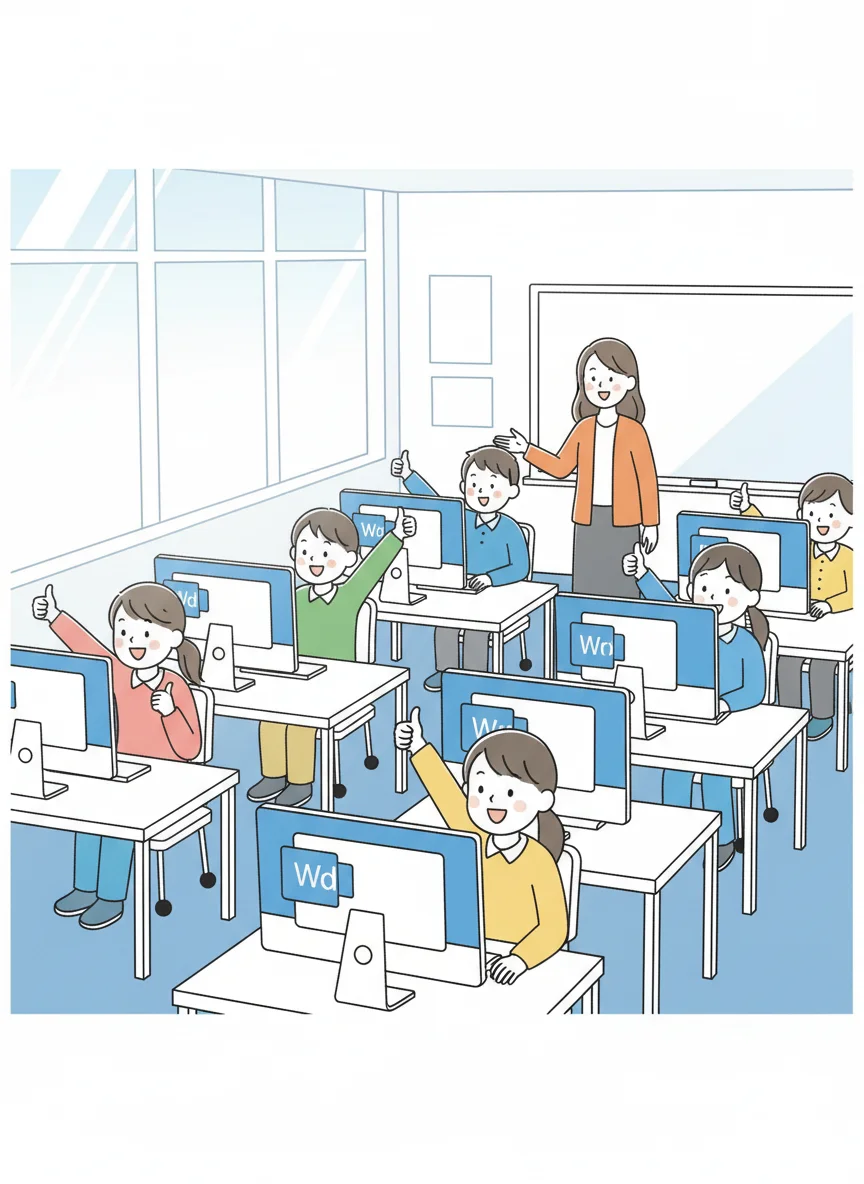
Ready to Begin!
Find your assigned partner and sit together Open Microsoft Word on your computer Create your documentation document first Start with Challenge #1 and work through in order Remember: explore, discover, and have fun learning! Raise your hand if you need any assistance